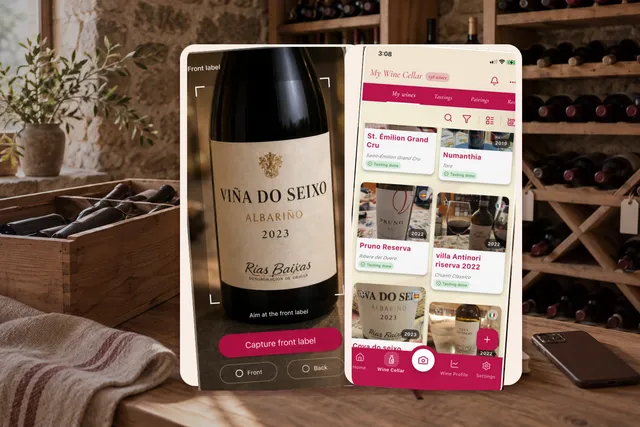
Adding wines to your cellar is one of the most important actions in Enolisa, but not every bottle should be added in the same way.
Sometimes you already know the wine name and only want to save it quickly. Sometimes the bottle is physically in front of you and scanning is faster. Sometimes you are still identifying the wine and need to use Enolisa’s broader catalog first.
That is why the real question is not just “how do I add a wine?”, but which add-wine path should I use right now?
Three real ways to add a wine in Enolisa
1. Manual entry
Use this when:
- you only need a fast capture;
- you already know the wine name;
- you want to save now and complete details later.
This is the best path if your goal is speed. The form does not have to become a long task.
2. Global search
Use this when:
- the wine is not yet in your cellar;
- you want to find the correct match before saving it;
- you are exploring a wine in Enolisa’s broader catalog;
- or you may want to send it to To discover instead of saving it directly to your inventory.
If you want to understand that broader flow in detail, see Enolisa’s global wine database: search, Global wine pages, and the “To discover” list.
3. Label scan
Use this when:
- the bottle is in front of you;
- you want to reduce typing;
- or you want the form to start with detected data instead of filling everything manually.
For the exact scan flow, go to How to scan a wine label in Enolisa: step-by-step tutorial.
Step 1: Access the Add Wine Form
- Open the app and go to the main section "My Cellar" (first tab in the bottom navigation bar).
- Tap the floating "+" button in the bottom right corner.
- The form to add a new wine will open.
Step 2: Choose the right add-wine path
Before you start filling fields, ask yourself one practical question:
“What do I know right now?”
- If you only know the bottle name and want to move fast, choose manual entry.
- If the bottle is physically there, choose scan.
- If you still need to identify the wine properly, use global search first.
This decision matters because it saves time and keeps the workflow aligned with the situation.
If your goal is the absolute lowest-friction save, the fastest logic is explained in How to Register a Wine in Seconds and Discover Much More Later.
Step 3: Complete or review the wine information
The form can contain several layers of detail, but not every session needs the same depth.
Main wine information
- Wine name (required field): Enter the full wine name.
- Wine type: Select between Red, White, Rosé or Sparkling using visual chips.
- Vintage: Select the harvest year.
- Alcohol content: Enter the alcohol percentage (optional).
Wine origin
- Country: Select the country of origin. When you choose a country, available appellations will load.
- Appellation / Geographical indication: Select the wine's DO or enter a new one if not in the list.
- Winery: Search or create the wine producer.
- Grape varieties: Select one or more grapes used in production.
Purchase information
- Where did you buy it?: Indicate the store or place of purchase.
- Price: Record the price paid and select the currency.
- Units: Indicate how many bottles you acquired.
- Purchase date: Select the date you bought the wine.
Additional information
- Additional notes: Free text field to note details you want to remember.
- Photo: Add a photo of the wine from your gallery or take a new one with the camera.
What matters most in practice
- If you are moving fast, the name is enough to save the wine first.
- If you used scan or global search, focus on reviewing and correcting.
- If you already know the purchase context, it is worth adding it now because it makes the cellar more useful later.
Step 4: Add cellar context, not just raw data
Adding a wine is not only about identification. It is about making the bottle useful inside your cellar afterwards.
That is why fields such as:
- purchase date;
- units;
- place of purchase;
- notes;
- and status context
help much more than they may seem at first.
They improve later tasks such as:
- finding the bottle again;
- sorting or filtering your collection;
- checking what is still available;
- and deciding what to open or buy again.
If you want to see how this connects with retrieval and filtering later on, read How to Search Wines in Enolisa: Your Cellar, Global Search, Filters, and Sorting.
Step 5: Save now, improve later
- Review that all information is correct.
- Tap the "Save Wine" button to add the wine to your collection.
- If some fields are still missing, you can come back later and complete them.
- Once saved, the wine becomes part of your cellar and can participate in later search, organization, and tasting flows.
Three common scenarios
“I only want to remember the bottle”
- Open the add flow.
- Type the wine name.
- Save it.
- Complete the rest later only if it matters.
“The bottle is in front of me”
- Open the add flow.
- Use the scan button.
- Review the detected data.
- Save after correction.
“I am not sure which exact wine this is”
- Use global search first.
- Open the correct result.
- Decide whether to save it to your cellar or keep it in To discover.
Why this page matters in the Enolisa system
Adding a wine is where several product flows meet:
- quick registration;
- global discovery;
- label scan;
- inventory building;
- and later search inside the cellar.
That is why this page should be read together with:
- How to Register a Wine in Seconds and Discover Much More Later
- How to Search Wines in Enolisa: Your Cellar, Global Search, Filters, and Sorting
- What is a digital cellar and how to organize your wines like a pro
Helpful Tips
- Do not overcomplicate the first save: if speed matters, save first and enrich later.
- Use scan when the bottle is physically there: it reduces friction.
- Use global search when you still need the correct match: not every task starts from a bottle you already own.
- Review detected data before saving: scan and search are there to accelerate the process, not to remove control.