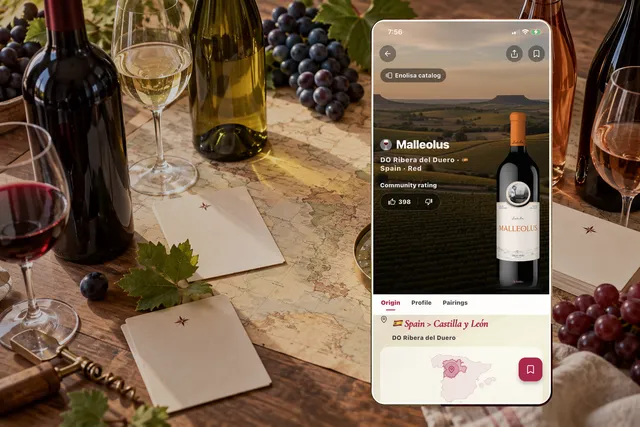
Searching wines in Enolisa works best when you understand that there are two different search moments:
- finding a bottle that is already in My Cellar;
- or finding a wine that is still outside your collection through global search.
That distinction is what turns search into a practical tool instead of a generic text box. Once your collection grows, it is not enough to “search wine”. You need to know where to search, how to narrow, and what to do next.
Two searches, two different goals
1. Search inside My Cellar
Use this when the wine is already part of your collection and you want to:
- find a bottle quickly;
- check whether you still have units available;
- review tastings or notes;
- narrow results by country, style, score, or status;
- decide what to open next.
2. Use global search
Use Enolisa’s broader catalog when the wine is not yet in your cellar and you want to:
- look up the correct wine before saving it;
- explore a producer or label you do not own yet;
- open a global wine page;
- send a wine to your To discover list.
If you want the full distinction between personal inventory and Enolisa’s larger catalog, see Enolisa’s global wine database: search, Global wine pages, and the “To discover” list.
Step 1: Access My Cellar
- Open the app and go to the "My Cellar" tab (first tab in the bottom navigation bar).
- You'll see your wine collection displayed in list or grid format.
Step 2: Text Search
- In the top bar, locate the search field.
- Tap on it and type your search term.
- Search works across multiple fields simultaneously:
- Wine name
- Winery
- Vintage
- Appellation
- Grape varieties
Search examples:
Rioja→ Will show Rioja wines.2019→ Will show all wines from the 2019 vintage.Tempranillo→ Will show wines made with Tempranillo.
Step 3: Advanced Filters
For more specific searches, use the advanced filters:
- Tap the filter icon (funnel) in the top bar.
- A panel with filtering options will expand.
Available filters
- Wine type: Filter by Red, White, Rosé or Sparkling.
- Country of origin: Select one or more countries.
- Appellation: Filter by specific DO.
- Wine status:
- In cellar: Wines you still have available.
- Consumed: Wines you've already drunk.
- To Discover: Wines on your wishlist.
- Tasted: Wines with at least one recorded tasting.
- Score range: Filter by the score you gave them.
- Winery: Filter by a specific winery.
Applying and clearing filters
- Apply filters: Tap the "Apply" button to see filtered results.
- Clear filters: Tap "Clear all" to remove all active filters.
- Active filters are shown as chips at the top of the list.
Step 4: Sorting
Besides filtering, you can sort results:
- Tap the sort icon (up/down arrows) in the top bar.
- Select the sorting criteria:
- Name (A-Z or Z-A)
- Vintage (newest or oldest)
- Purchase date (newest or oldest)
- Score (highest or lowest)
- Price (highest or lowest)
- Last modified date
When a cellar search should become a global search
This is the part many users get wrong.
If the bottle is not already in My Cellar, staying inside cellar search will not solve the task. That is the moment to jump to:
- global text search, if you want to find the wine in Enolisa’s wider catalog;
- or label scanning, if the bottle is physically in front of you.
This matters because Enolisa separates:
- what you already own;
- from what you are evaluating, discovering, or planning to save later.
If you first want to save the bottle quickly and complete details afterwards, the fastest flow is explained in How to Register a Wine in Seconds and Discover Much More Later.
Combining tools
You can combine all three tools for precise searches:
Practical example:
- You want to find a high-scoring Spanish red for a special dinner.
- Search: Leave empty or type a keyword.
- Filters: Type = Red, Country = Spain, Score ≥ 4.
- Sort: By score descending.
That same logic also helps with more practical cellar tasks:
- finding bottles you have not tasted yet;
- locating wines from a specific region before a dinner;
- checking which bottles are still available before buying again;
- reviewing wines on your To discover list separately from owned stock.
Real search scenarios inside Enolisa
“I know I own the bottle, I just cannot find it”
- Search by wine name, producer, or vintage.
- If too many results appear, add filters such as country or type.
- Sort by last modified date or name.
“I want to open something good tonight”
- Filter by status = In cellar.
- Add country, style, or score filters.
- Sort by score descending or by the most relevant practical field for you.
“I am not sure whether I own it or only saved it for later”
- Search first inside My Cellar.
- If it does not appear, move to global search and check whether it lives in your broader discovery flow instead.
List vs. Grid View
Enolisa lets you switch between two display modes:
- List: Shows more information for each wine (name, winery, vintage, score).
- Grid: Shows wine photos in a compact visual format.
Tap the view toggle icon to switch between both modes.
Why this matters in a digital cellar
Search is not just a convenience feature. It is one of the things that makes a digital cellar usable over time.
If your inventory grows but retrieval stays clumsy, the cellar turns into storage. If you can search, filter, and sort with intent, the cellar becomes a decision tool.
That is also why this page connects so closely with:
- How to Add a Wine to Your Enolisa Cellar: Manual Entry, Global Search, and Label Scan
- What is a digital cellar and how to organize your wines like a pro
- How to Register a Wine in Seconds and Discover Much More Later
- What is Enolisa: the smart app to manage your cellar and tastings with AI-Lisa
Helpful tips
- Use status filters: "Tasted" and "Not tasted" help you decide which wine to open.
- Combine country + type: Ideal for regional pairings.
- Sort by purchase date: Useful for identifying wines that have been waiting a while.
- Search by grape: Type "Grenache" to see all your wines of that variety.